Apps · SketchUp AI Render
From SketchUp design to mood image, in one click.
An extension for SketchUp that sends your camera view, an automatic line drawing and your own reference images — appliances, materials, mood photos — to an image model together. The mood image comes back into the project folder, next to the design. Built for kitchen makers and interior architects.
Example · demo model from SketchUp
What goes in, and what comes out.
At the top, what the extension takes from SketchUp by itself; below it, the result. No retouching, no export to another program.
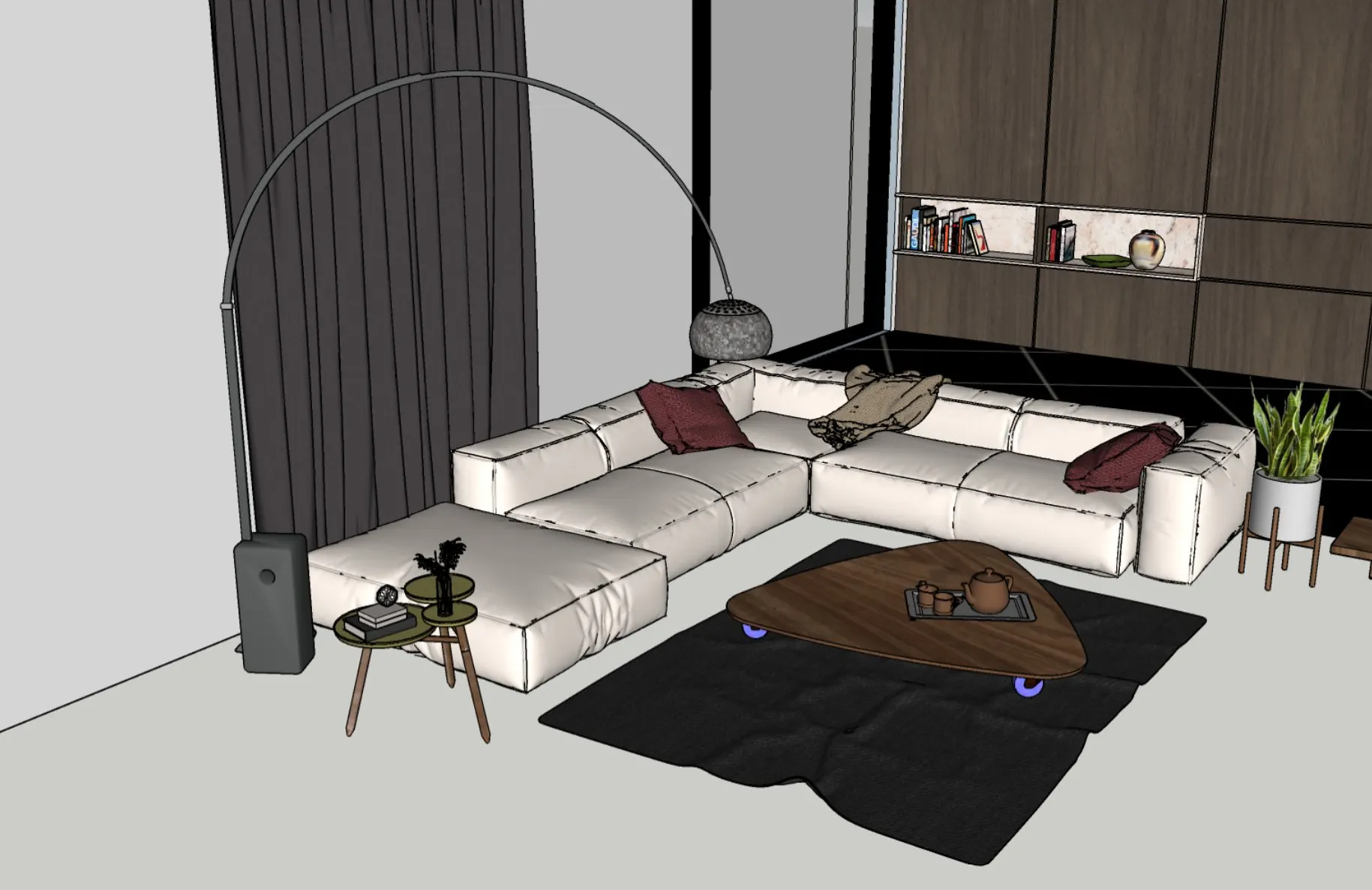
Image 1 · design
The camera view, straight from SketchUp.
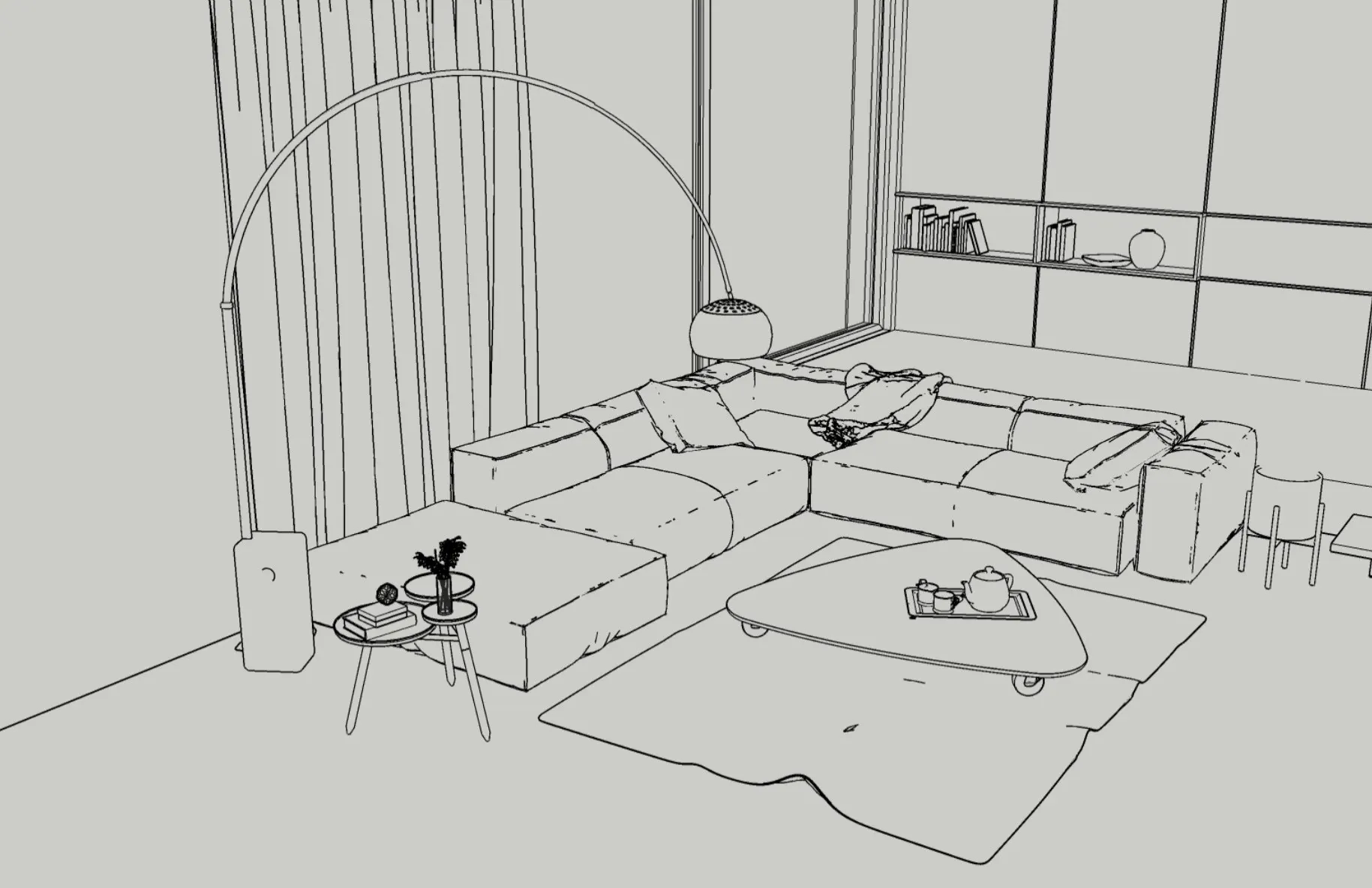
Image 2 · line drawing
The same camera as a line drawing: outlines, heights and thicknesses, without materials.
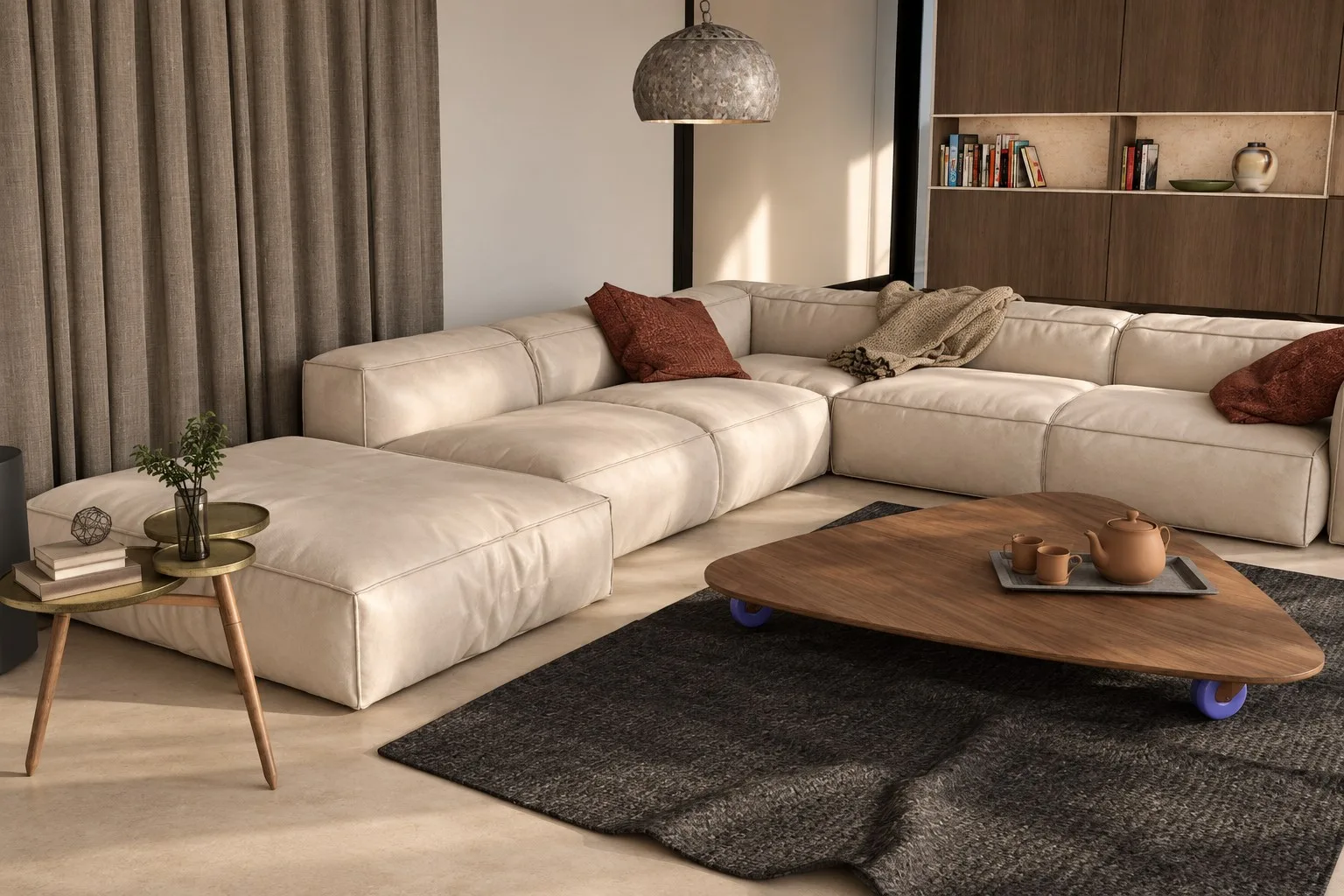
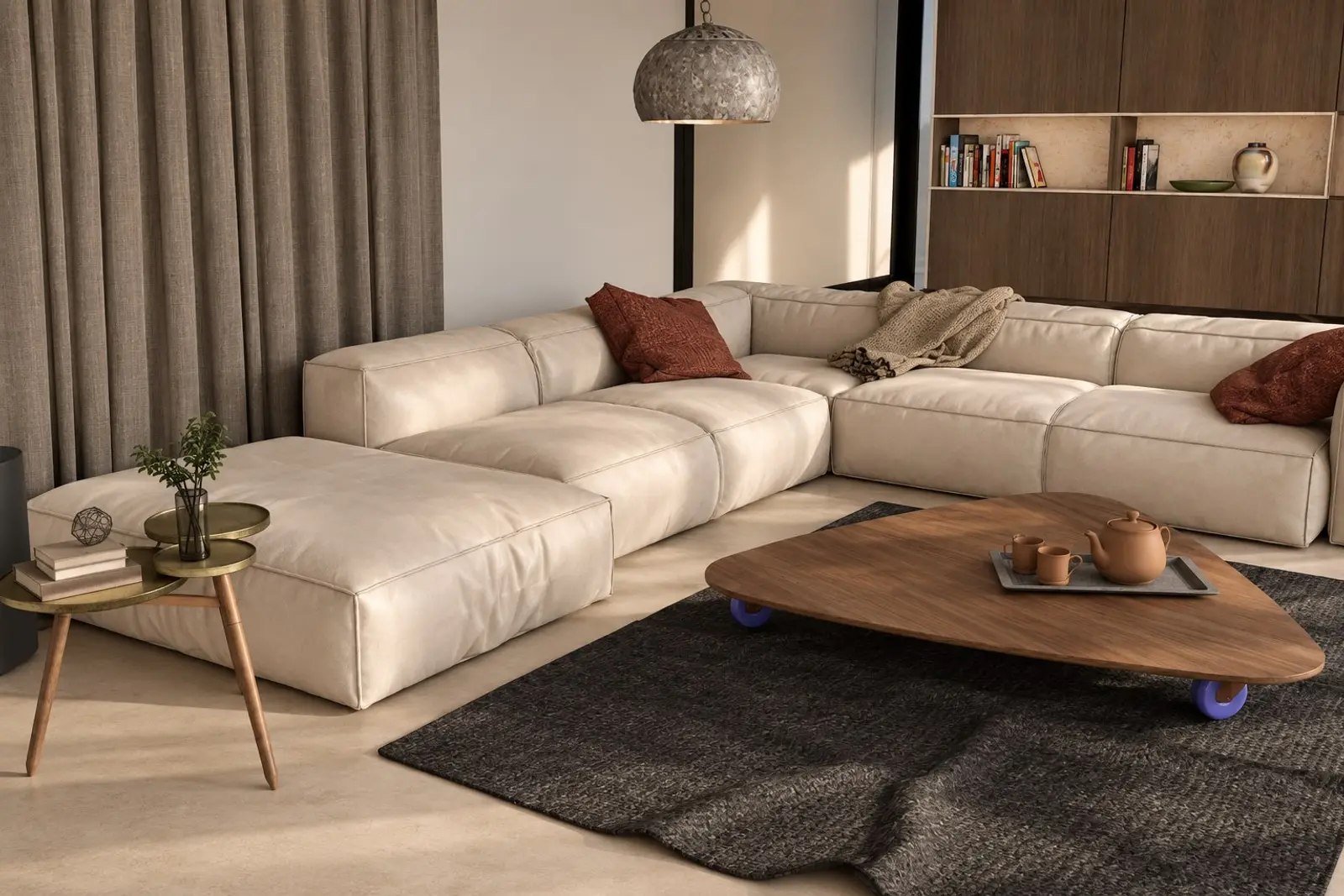
Result · mood image
Labelled as a mood image, not contractual — saved in the project folder together with the prompt and the images used.
To be fair: an image model redraws the picture. Look closely and you will see it — the arc lamp became a pendant and the plant is gone. That is why the extension labels every result as a mood image. For images that have to be contractually exact, we use a real renderer.
How it works · four steps
One button, no export hassle.
The designer stays in SketchUp. The extension gathers what the image model needs, sends it off and files the result with the project.
Step 01
A project folder next to the design
Folders for appliances, materials and mood. The file name becomes the label in the prompt: oven_aeg_bpe535.jpg becomes “oven aeg bpe535”.
toestellen/ · materialen/ · mood/ · renders/
Step 02
A skill instead of a prompt
Fixed instructions per company in one file: what must stay, what may change, which choices the designer gets. No free-text prompt box.
skill.md · choices · dimensions
Step 03
Design, line drawing and dimensions
The camera view goes along twice — with materials and as a line drawing — together with the dimensions the designer enters, such as worktop height and thickness.
SketchUp Ruby API · hidden line
Step 04
Render, two ways
Cut and paste the package into your own ChatGPT session, or let it run automatically through the OpenAI or Microsoft Foundry API. Image and metadata land in renders/.
ChatGPT · OpenAI · Microsoft Foundry
Who it is for
For people who design in SketchUp and sell to clients.
Kitchen makers
Mood images with the appliances and fronts from your own range, already during the first conversation with the client.
Interior architects
Three lighting moods or material variants side by side, without spending an evening in a rendering program.
Furniture and stand builders
One project folder per client, with every image and the instructions behind it kept — easy to find and to make again.
Your images go to the model you choose. With Microsoft Foundry that stays inside your own Azure subscription; API keys are never stored in the project folder.
Want to see it on your own designs?
We will show the extension on one of your own SketchUp models, with your own appliances and materials. Send us an email about what you design.